Building flows
Variables
Feed data into flows with $variables, and pass values between steps.
Variables are how data moves through a flow: inputs you define up front, values steps save at runtime, and rows from a CSV you want to loop over. Reference any of them in any text field by prefixing the name with $.
Defining variables#
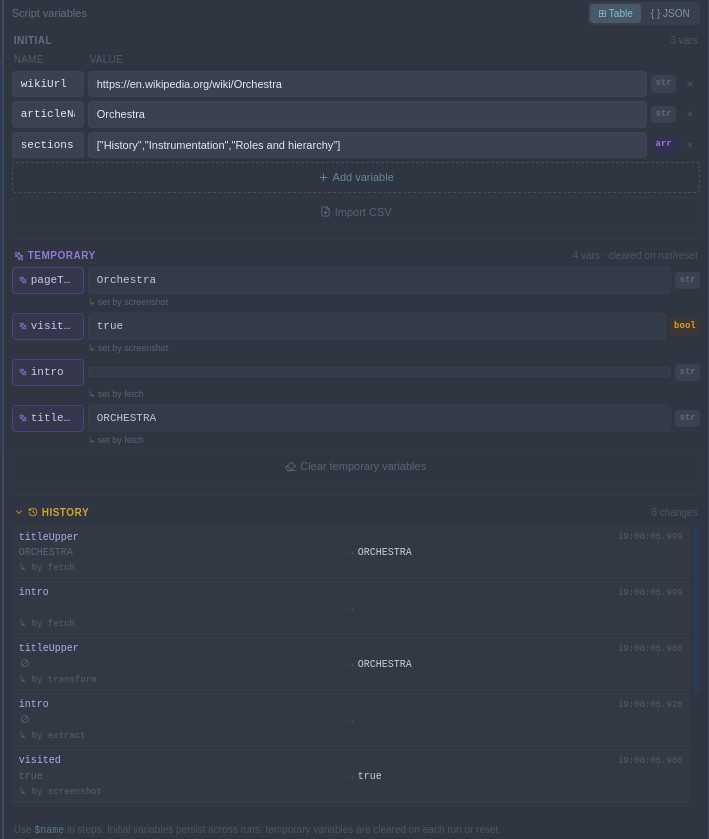
Open the Variables tab in the flow panel. In table mode, add rows of name/value pairs; in JSON mode, edit the whole set as one JSON object — useful for nested data:
{
  "username": "ada",
  "search": "mechanical engines",
  "account": { "plan": "pro", "seats": 3 }
}
Using variables#
Write $name in any field — a URL, a Fill value, an Output value, an Assert expectation. For objects and arrays, drill in with a dot path: $account.plan.
https://example.com/users/$username
Variables also work inside expressions — the Condition instrument, the Run-if modifier and conditional values all accept JavaScript where $name refers to your variables.
Variables set at runtime#
Steps can create and update variables while the flow runs:
- Extract saves text or attributes from the page.
- Value sets or updates a variable explicitly (optionally only when a condition holds).
- Fetch, Evaluate and Transform save their results.
When a run creates variables you haven't seen, a violet badge appears on the Variables tab. The tab shows which step set each value, and the config panel shows a "Variables set" readout on the step itself after it runs. Runtime values are cleared at the start of each run — your initial variables are the durable ones.
Importing a CSV#
In the Variables tab, use Import CSV. The file needs a header row; each following row becomes an object keyed by the headers, and the whole file lands in a single variable named after the file. leads.csv becomes:
"leads": [
  { "name": "Ada", "email": "ada@example.com" },
  { "name": "Grace", "email": "grace@example.com" }
]
Pair it with the Each container to run a block of steps once per row — inside the loop, the current row is available as its own variable, so $row.email (or whatever item name you chose) fills a form from your spreadsheet. See Flow instruments.